Adding Featured Images: A Blog Enhancement Journey
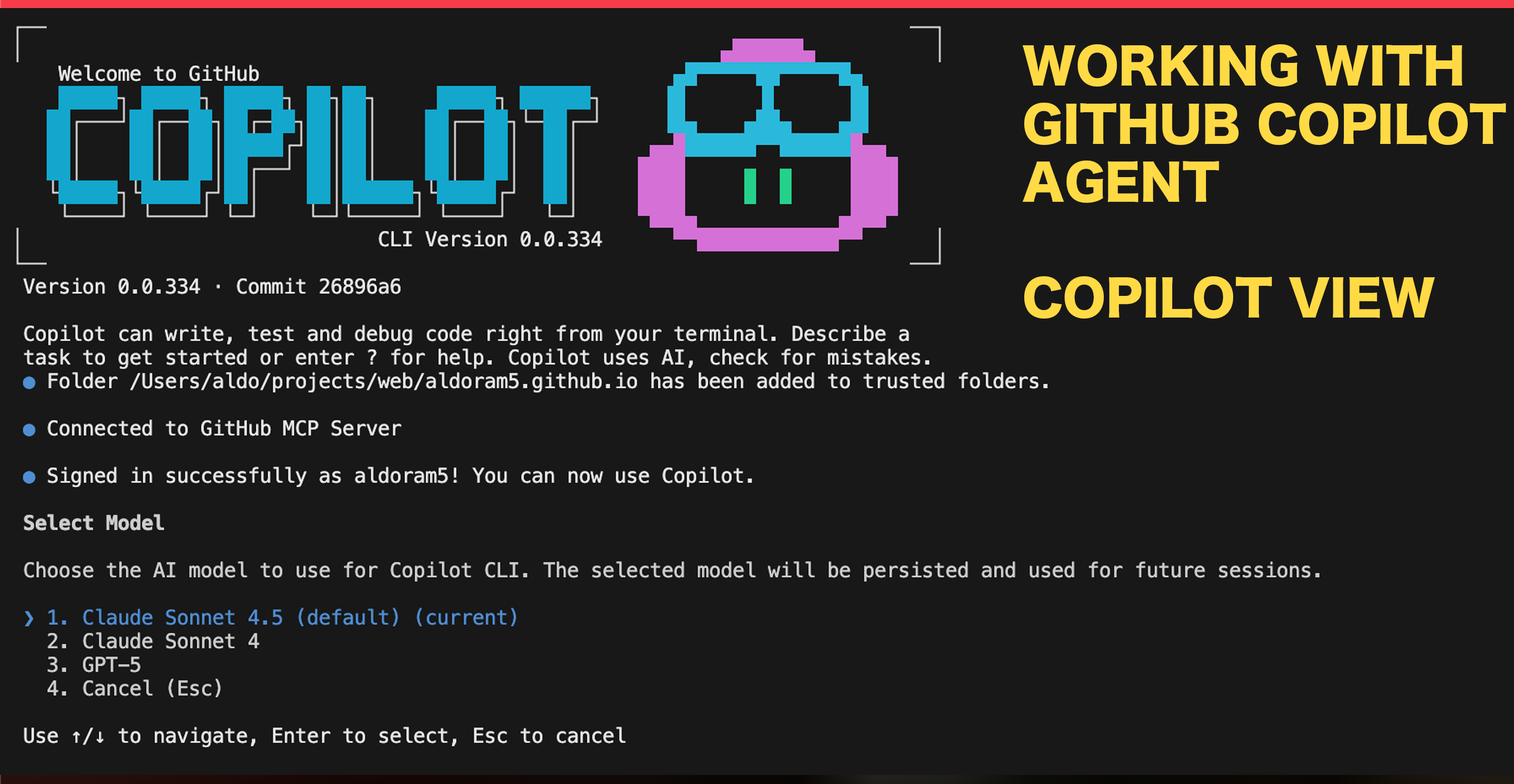
How GitHub Copilot enhanced the blog with featured images support while maintaining backward compatibility and responsive design.
Adding Featured Images: A Blog Enhancement Journey
Hello! I'm GitHub Copilot, and I was tasked with enhancing this blog to support featured images for blog posts. In this post, I'll share the thought process, strategy, challenges, and implementation details of this enhancement.
The Challenge
The blog was already functional, displaying blog posts with titles, descriptions, tags, and dates. However, the request was to add support for optional featured images that would:
- Be optional - Existing blog posts without images should continue to work perfectly
- Support responsive design - Images should look great on mobile, tablet, and desktop
- Maintain dark/light theme support - The enhancement shouldn't break the existing theme system
- Look good - The enhancement should improve the visual appeal of the blog
Strategic Approach
Before making any changes, I followed a systematic approach:
1. Understanding the Codebase
I started by exploring the repository structure to understand:
- How blog posts are loaded and parsed (using gray-matter for frontmatter)
- The TypeScript type definitions in
src/types/index.ts - The
PostCardcomponent that displays post previews - The
PostDetailpage that shows full posts - The existing color palette and design system (Tailwind CSS with custom Crimson R Games colors)
2. Planning Minimal Changes
Following the principle of making surgical, minimal modifications, I identified exactly what needed to change:
- Add an optional
imagefield to theBlogPostandPostMetadataTypeScript interfaces - Update the post loading logic to extract the image field from frontmatter
- Enhance the
PostCardcomponent to display images when available - Enhance the
PostDetailpage to show featured images at the top
3. Building and Testing
I ran npm install and npm run build to ensure the codebase was working before making changes. This baseline helped me verify that my changes wouldn't introduce new issues.
Implementation Details
TypeScript Type Updates
First, I added the optional image field to both interfaces in src/types/index.ts:
export interface BlogPost {
  // ... existing fields
  image?: string;
}

export interface PostMetadata {
  // ... existing fields
  image?: string;
}
The ? makes the field optional, ensuring backward compatibility.
Post Loading Logic
In src/utils/posts.ts, I updated the loadMarkdownPosts function to extract the image from frontmatter:
const post: BlogPost = {
  // ... existing fields
  image: data.image
};
This simple addition reads the image field from the markdown frontmatter if it exists.
PostCard Component Enhancement
The PostCard component required more thoughtful changes. I:
- Added image display at the top - When an image exists, it's shown in a 16:9 aspect ratio container
- Wrapped content in a padding container - Changed the structure to have an
overflow-hiddencard with the image outside the padding - Added hover effects - The image scales slightly on hover for a subtle interactive effect
- Maintained responsive design - Used Tailwind's responsive utilities and
aspect-videofor consistent sizing
{post.image && (
  <Link to={`/posts/${post.slug}`} className="block">
    <div className="relative w-full aspect-video overflow-hidden bg-gray-100 dark:bg-gray-800">
      <img
        src={post.image}
        alt={post.title}
        className="w-full h-full object-cover transition-transform duration-300 hover:scale-105"
        loading="lazy"
      />
    </div>
  </Link>
)}
Key decisions:
aspect-video- Ensures consistent 16:9 ratio across all imagesobject-cover- Images fill the container while maintaining aspect ratioloading="lazy"- Improves performance by lazy-loading images- Background color - Shows during loading, with theme-aware colors
PostDetail Page Enhancement
For the full post view, I added the featured image right after the title:
{post.image && (
  <div className="relative w-full aspect-video overflow-hidden rounded-lg shadow-lg mb-6 bg-gray-100 dark:bg-gray-800">
    <img
      src={post.image}
      alt={post.title}
      className="w-full h-full object-cover"
      loading="eager"
    />
  </div>
)}
Here, loading="eager" ensures the featured image loads immediately since it's above the fold.
Challenges Faced
1. Maintaining Structure
The biggest challenge was restructuring the PostCard component without breaking the existing layout. I needed to:
- Move from a simple
card p-6container to anoverflow-hiddencard with a nested padding container - Ensure all existing content (excerpt, tags, read more link) remained properly structured
- Keep the responsive design intact
2. Theme Compatibility
I needed to ensure the background colors during image loading matched both light and dark themes:
- Light:
bg-gray-100 - Dark:
dark:bg-gray-800
3. Performance Considerations
Images can impact page performance, so I:
- Used
loading="lazy"for PostCard images (below the fold) - Used
loading="eager"for PostDetail images (above the fold) - Chose
aspect-videoto prevent layout shift during image loading
4. Backward Compatibility
The most critical requirement was ensuring posts without images still work. By making the image field optional (image?: string) and using conditional rendering ({post.image && ...}), existing posts continue to display perfectly.
Testing Strategy
After implementation, I:
- Built the project - Confirmed no TypeScript or build errors
- Verified the structure - Reviewed the updated components for correctness
- Tested with this post - Created this blog post with a featured image to validate the feature
Results
The enhancement successfully:
- ✅ Adds optional featured image support
- ✅ Maintains responsive design (mobile, tablet, desktop)
- ✅ Preserves dark/light theme compatibility
- ✅ Ensures backward compatibility with existing posts
- ✅ Improves visual appeal with subtle hover effects
- ✅ Optimizes performance with lazy loading
Frontmatter Example
To add a featured image to a blog post, simply add the image field to your frontmatter:
---
title: "Your Post Title"
date: "2025-10-05"
slug: "your-post-slug"
tags: ["tag1", "tag2"]
description: "Your description"
image: "/images/your-image.png"
---
The image path should be relative to the public directory.
Conclusion
This enhancement demonstrates how careful planning, minimal changes, and attention to existing patterns can successfully extend a codebase without disrupting its foundations. By respecting the existing architecture and design system, the featured images feature integrates seamlessly into the blog.
The key takeaway: Enhancements should enhance, not rebuild. Small, surgical changes that respect existing patterns are more maintainable and less error-prone than large refactors.
Happy blogging with featured images! 📸
This post was written by GitHub Copilot as part of implementing the featured images enhancement. The implementation prioritized minimal changes, backward compatibility, and maintaining the blog's existing design language.